
Introduction
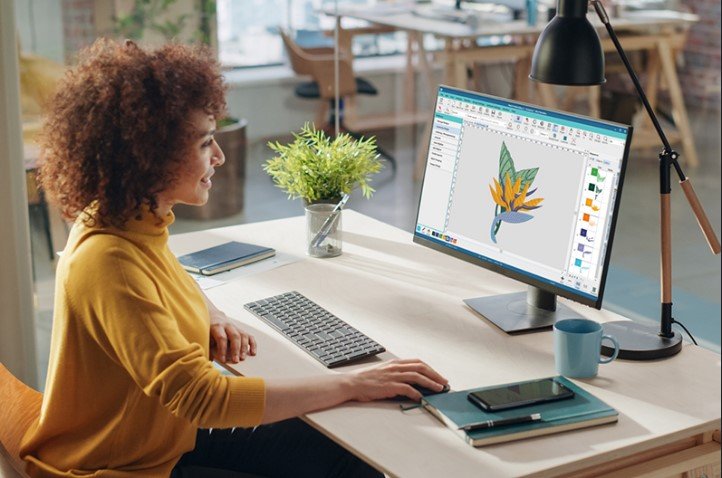
You just got a Baby Lock embroidery machine, or maybe you’ve had one for a while but haven’t tackled converting your own logos yet. You have a design in mind—a team logo, a business emblem, or a personal crest—and you’re ready to see it stitched onto a hat, a bag, or a jacket. But here’s the thing: your Baby Lock machine doesn’t understand JPGs or PNGs. It speaks a different language, one of stitches, thread colors, and precise needle movements. The process to Convert Logo To Embroidery For Babylock is called digitizing, and while it sounds technical, it’s absolutely learnable. This beginner’s guide will walk you through everything you need to know, from understanding file formats to choosing the right software and finally stitching out your first logo.
What Happens When You Convert a Logo?
First, let’s get clear on what “converting” actually means. When you convert a logo for embroidery, you’re not just changing a file extension from .jpg to .pes. You’re creating a whole new file that contains detailed instructions for your machine .
A JPEG stores pixels—colored dots arranged in a grid. An embroidery file like .PES stores commands :
- Where to place each stitch
- What type of stitch to use (satin, fill, running)
- When to change thread colors
- How dense the stitching should be
- What order to sew everything in
This process is called digitizing, and it’s the heart of logo embroidery .
Step 1: Know Your Baby Lock File Format
Baby Lock machines primarily use the .PES format. This is the native language of most Baby Lock and Brother home embroidery machines . PES files store both stitch data and thread color information, which means when you load a PES file, your machine can show you exactly which colors go where .
Some older Baby Lock models (like the Artista series) may use .ART format, and higher-end models like the Solaris can use .EXP . Check your machine’s manual to confirm which formats it supports. For most beginners, though, .PES is what you’ll be creating.
Key takeaway: Your goal is to create a .PES file that your Baby Lock machine can read .
Step 2: Prepare Your Logo for Digitizing
Before you open any software, take a critical look at your logo. Not everything that looks good on screen translates well to thread.
Start with Clean Artwork
The best results come from high-quality source images . If you can get a vector file (AI, EPS, SVG), use it. Vector files scale infinitely and have sharp edges that digitizing software can trace cleanly .
If you only have a raster image (JPG, PNG), make sure it’s:
- At least 300 DPI at your target embroidery size
- High contrast with clear edges
- Free of background clutter
Simplify for Stitchability
Embroidery has limitations. Ask yourself :
- Is there text smaller than 0.25 inches? It may not stitch legibly.
- Are there super-thin lines? They might disappear or break.
- Are there gradients or shadows? These need to be simplified to solid colors.
- Are there too many colors? Consider reducing the palette.
This isn’t about changing your logo—it’s about adapting it for a new medium .
Step 3: Choose Your Digitizing Path
You have three main options for converting your logo.
Option A: Use Digitizing Software (DIY Approach)
If you want to learn digitizing yourself, you’ll need software that can create PES files. Options range from free to professional-grade:
Free option: Ink/Stitch is a free, open-source extension for Inkscape that can convert SVG designs to PES files . It requires some setup and learning, but it’s a powerful zero-cost solution.
Beginner-friendly paid options: Embrilliance Essentials and Hatch Embroidery are popular choices that balance ease of use with professional results . They offer intuitive interfaces and good learning resources.
Professional software: Wilcom and Baby Lock’s own Palette software are industry standards used by commercial digitizers . They offer complete control but have steeper learning curves and higher price tags.
Option B: Use Auto-Digitizing Features
Many digitizing programs include auto-digitizing tools that attempt to convert images automatically with minimal input . This can work for simple logos with bold shapes and few colors. However, auto-digitizing rarely produces perfect results for complex designs . Think of it as a starting point that needs manual cleanup.
Option C: Hire a Professional Digitizing Service
For beginners, this is often the smartest path . Professional digitizers have the experience and software to create flawless files. Companies like Absolute Digitizing, Digitizing Buddy, Cool Embroidery Design, and Absolute Digitizer specialize in converting logos for Baby Lock machines.
Advantages:
- No software to buy or learn
- Professional-quality results guaranteed
- Fast turnaround (often 12-24 hours)
- Free revisions if adjustments are needed
- Files delivered in your exact format
Step 4: The Digitizing Process (What Happens Behind the Scenes)
Whether you’re doing it yourself or evaluating work from a service, understanding the process helps you get better results.
Import and Size
The logo is imported into digitizing software and sized to the exact finished dimensions—for example, 3 inches wide for a left chest placement . Size matters because stitch types and densities are calculated based on the final dimensions.
Stitch Type Selection
Different elements need different stitch treatments :
- Satin stitches: Used for outlines, borders, and text. They create smooth, glossy edges.
- Fill stitches (Tatami): Used for larger solid areas. They provide even coverage.
- Running stitches: Used for fine details and connecting elements.
Underlay Placement
Underlay stitches are the hidden foundation that stabilizes fabric and prevents puckering . A good digitizer adds underlay before the top stitches—this is what makes professional embroidery look clean.
Density and Pull Compensation
Density controls how close stitches are placed . Too dense, and the design feels stiff and may damage fabric. Too light, and fabric shows through.
Pull compensation accounts for thread tension pulling fabric inward . Without it, circles become ovals. The digitizer slightly overshapes elements so they contract into the correct dimensions.
Color Sequencing
The digitizer assigns thread colors and arranges them in the order the machine will sew them . This sequencing minimizes unnecessary color changes and thread trims.
Step 5: Save and Transfer to Your Baby Lock
Once digitizing is complete, the file is saved in .PES format (or whatever format your Baby Lock requires) .
Transfer methods:
- USB drive (most common)
- Direct cable connection
- Wi-Fi (on newer models)
Simply copy the .PES file to your USB drive, plug it into your Baby Lock, and select the design from the machine’s screen .
Step 6: The Critical Test Stitch
This step separates beginners from pros—and it’s absolutely essential .
Before stitching on your final garment:
- Hoop a piece of scrap fabric that’s similar to your project material
- Use the same stabilizer you plan to use for the real project
- Run the design and examine the result
- Is there any puckering?
- Are details crisp and readable?
- Do colors register properly?
- Does the design feel balanced?
If anything looks off, adjustments are needed. This is why professional services include free revisions—getting the file perfect on test fabric saves your actual garments .
Step 7: Stitch Your Final Project
Once your test passes inspection, you’re ready for the real thing .
Hooping Tips
- Use appropriate stabilizer for your fabric (cut-away for knits, tear-away for wovens)
- Hoop firmly but don’t overstretch
- Mark placement lines for accuracy
Machine Setup
- Load thread colors in the order specified in your file
- Use quality embroidery thread (40-weight polyester or rayon)
- Choose the right needle for your fabric
- Run a trace on the machine to confirm positioning
During Production
If you’re doing multiple items, consider having a second hoop ready so one item stitches while the next is prepped . This keeps production flowing.
Common Beginner Mistakes to Avoid
Starting with poor source images. Blurry, low-resolution logos produce blurry, disappointing embroidery. Always use the highest quality artwork available .
Skipping the test stitch. The screen lies; fabric tells the truth. Never go straight to production without testing on scrap .
Choosing the wrong stabilizer. Stabilizer isn’t optional—it’s the foundation of good embroidery. Match it to your fabric .
Using incompatible thread. Cotton or metallic threads can cause breaks and tension issues. Stick with 40-weight polyester or rayon embroidery thread .
Ignoring fabric recommendations. Your Baby Lock works best with stable fabrics like cotton, canvas, and twill . Very stretchy or delicate materials require extra care and specialized techniques.
Conclusion: Your Journey from Logo to Stitches
Learning to Convert Logo To Embroidery For Babylock opens up a world of creative possibilities. Whether you’re making custom gifts, branding your business, or creating team apparel, the ability to turn any logo into a stitch-ready file puts you in control.
The path is straightforward: prepare your artwork, choose your digitizing method (DIY or professional service), understand the file format, and always—always—test before production. With practice, you’ll develop an eye for what works in thread and what needs adjustment.
Your Baby Lock machine is a precision tool capable of stunning work. By feeding it properly digitized files, you empower it to produce embroidery that looks as sharp and professional as your original vision. Start with a simple logo, follow the steps in this guide, and watch your ideas come to life—one perfect stitch at a time.